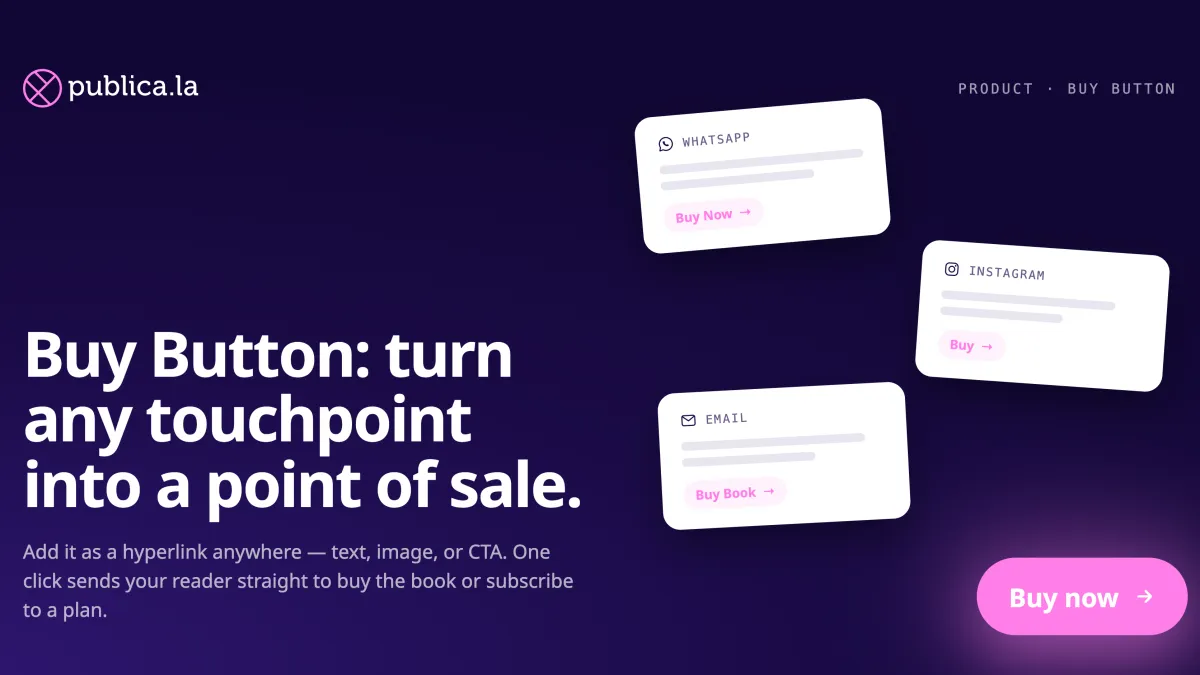
Turn any title or plan into a "Buy now" link that takes readers straight to checkout.
You just told a reader about the perfect book. They click through to your store — and now they have to find it, open the page, and start the purchase from scratch. Every one of those steps is a chance to lose the sale.
The new Buy button removes them. From your dashboard, copy a direct checkout link for any product and paste it wherever your readers already are — a newsletter, a social post, a WhatsApp message, an ad, a QR code at an event. One click, and the reader lands right at checkout.
Works across your whole catalog
- Publications: ebooks, audiobooks and physical books. Any title you sell individually gets its own buy link.
- Plans: subscription plans get a shareable link too — ideal for campaigns that promote membership directly.
It's the shareable version of automatic checkout: instead of sending people off to browse, you send them straight to the finish line.
Where to find it
Open the actions menu on any row of your Content or Plans dashboard and choose Copy "Buy button" — right next to the copy-link options you already use. The link lands on your clipboard, ready to paste anywhere.
The option only appears when a product can actually be bought: on sale, priced, and available. Free titles, items withdrawn from sale, and plans sold outside the platform don't get a link — so every link you copy is one that works.
💡 Selling subscriber-only content? The link opens checkout for eligible subscribers; everyone else lands on the publication page. We flag it with a note on the action, so there are no surprises.
➡️ Head to your Content or Plans dashboard and copy your first Buy button.